Thursday, 10 October 2013

How To Get Unlimited Coins In Subway Surfers

0 comments
Subway Surfer is one of the famous games of Android & IOS device users. Those who love to play games in mobiles can surely try this game if they still didn't tried. Main part in this game is to collecting points, if you have more points then you can enjoy each and every feature as well as you can increase your score also. You can enjoy this game in PC also by using android emulator for PC named Bluestack but you can't use this trick in PC.

Now its time to use cheat and fool others by showing your points and always be on top by scoring high scores. Follow below steps correctly and enjoy unlimited coins.

Steps To Follow For Collecting Unlimited Coins :

  • At first if you don't have Subway Surfer then download it from below link.

  • Now your task is to download cheat files, download it from below link.

  • After downloading cheat files, just extract it and you can find three cheat files inside it. Keep it in safe place , we are going to use these three files in next steps.
  • Now goto google play and search for an application called " File Explorer " and download it. OR you can download file explorer from below link also.

  • Now open game and goto Settings -- Apps -- Manage Apps -- Subway Surfer -- Tap on clear data.
  • Now copy the three files of cheat which you extracted in above steps and open File Explorer then goto sd card -- Android -- data -- com.kiloo.subwaysurf -- files and paste it here.
Note : If file folder is empty then its ok or if already some files is present in file folder then delete it and paste your three files which you downloaded in above step.

  • Now everything is Done !! Just restart your mobile and open subway surfer and see the points :D
Hope you loved this cheat trick . Comment below if you can't understand any steps or you are facing any problems.


Tuesday, 8 October 2013

How To Use Wechat In Computer Without Using Any Software

0 comments
Wechat is new mobile application for voice messaging and it works superbly but its basically designed for Android, IOS, Windows and some java mobile phones. Wechat is somehow related to Whatsapp but its not as popular like whatsapp. Most of you already know about how to use whatsapp in PC, yes with the help of bluestack we can use any android application even wechat also in pc, but here in this post I am going to show you that how to use wechat in PC without using any third party software or applications.


Steps To Follow For Using Wechat In Computer :

  • At first open wechat in your mobile . ( If your mobile does not supported wechat then you can't use this trick ).
  • Now on the right top corner you will find an option of Magic Wand, just Tap on it.

  • After tapping, you can see a drop down menu along with some options, now click on Scan QR code.

  • Now after scanning, in next window it will ask you to confirm that you are going to use wechat in your computer, finally click on OK.


Now You're Done !! Check your computer screen is now showing wechat. Now start chatting using wechat in PC and enjoy.

Comment Below for any type of queries and like this post if you really love this website.


Wednesday, 18 September 2013

How To Use Android Apps In PC [[ Alternative Of Bluestack ]]

0 comments
Android is one of the widely used Mobile Operating system, but sometimes we ove to enjoy enjoy Android games and Apps in computer also for better look and view. Most of you already know that Bluestack easily completed out task of running Android apps or games in pc but it has some high graphics error, that means if your pc does not have high graphical power then you can't able to run bluestack in your pc. Sp I thought to search an alternative for bluestack and found a new software called Youwave. 

Youwave is another great software to run Android apps or games in PC and the graphical requirement of Youwave are less than Bluestack, so it can be installed in any PC with any graphical card.

Features Of Youwave :

  • Supports Android 4.0 ICS ( Home Version ) and 2.3 Gingerbird ( Basic Version ).
  • Run On Windows XP/Vista/7 in 32/64 Bits.
  • Simulated SD card functionality -  enables game saving.
  • Saved state - Enables fast restart.
  • Enables multi player online games.
  • Dynamic rotating - phone like instant response.
  • Volume Control buttons.
  • Retractable control panel.

?? Download Youwave from Official Website (10 Days Trial ) ??


Download Now
Youwave.
By ~ CS Tricks ~


?? Download Youwave from Mirror Link ??

Download Now
Youwave Mirror Link
By ~ CS Tricks ~


Tuesday, 13 August 2013

Hide Any File In Android Device Without Using Any Software

0 comments
Nowadays Android is one of the mostly used operating system of mobile, so I thought to search some new tricks for android users who love to play with tricks. We all got some private stuffs in our personal life which we  don't want to share with others, so we always preferred to use some third party software for hiding our those stuffs, but here I am going to guide you about small trick which will help you to hide your files in android device without using any third party software. This is a simple trick but much needed one.

This trick does not require any app. Its a simple trick, even an unskilled user can perform. 

Steps To Hide Your Files In Android Device :

  • Goto the file or folder which you want to hide.
  • Now select rename option.
  • Now just right (.) dot at the starting of the file name.
Example : If your file name is CSTricks, then rename it to .CSTricks and press OK.

You May Also Like This : How To Hide Folders In Nokia Mobiles Without Any Software 

  • If your hidden files are in shown activity then goto setting and unmark Show Hidden Files.
  • Now your file is successfully hidden without using any third party software.
Note : If you want to unhide that file , then just goto setting and tick Show hidden files and finally goto that file and rename it again without (.) dot.

Must Read : Top 10 Free Mobile Recharge & Online Earning Websites 


Please Recommend Us On Google     

Sunday, 11 August 2013

How To Download Youtube Videos In Android Device

0 comments
Hey CS Tricks Readers, as we all know Youtube is one of the best website for all types of videos but it does not allow officially to download any video, unless you have some third party softwares like Internet download manager or other youtube downloaders, and all of these softwares are only for computers not for mobile , but  here I am back with awesome tool which will allows you to download any Youtube videos in any android device without any error. 

Tubemate is an application which will help you to download any types of youtube videos in your android device and its very easy to use also.

Steps To Follow :

  • First of all, Download Tubemate from below link.

  • Install it in your Android device.
  • Open it and search for any video which you want to download. 
  • Now click on video you wish to download.
  • Now at the bottom, click on " Green arrow pointing downward side " button for downloading your file.
  • Now you will get a number of options that in which  format  you want to download your video.
  • Select the format according to your device support capability.
  • Enjoy !! Now you can successsfully download any youtube videos in your android supported device.

Must Read : Top 10 Free Recharge & Online Earning Websites 


Please Recommend Us On Google     


Friday, 9 August 2013

WhatsApp Launches Voice Messaging

0 comments
WhatsApp, the revolutionary chatting app has launched " Voice Messaging " a new feature that will let users to record and send audio files with one tap on their smartphones. 

An official of WhatsApp quoted earlier that " We are releasing voice messages on all of our platforms simultaneously . We worked very hard to make sure that iPhone and Android devices have perfectly working voice messages functionality, and we put extra effort into making sure that Blackberry, Nokia & Windows phone users can also enjoy the same rich and powerful voice message experience ".

How To Use this new Feature :

  • For Android, iPhone & Windows : Users will see a microphone icon right next to the box where they type. For recording a messege just hold that icon till you are finished talking and then releasing it will automatically send your message. For cancelling it just slide your hand on the microphone icon.

  • For Blackberry Devices : Blackberry devices with older versions having keyboard, they just need to press the space bar. Press the end call button for cancelling a message.


  • For Nokia Symbian Devices : Nokia Symbian users hold the centre button to record the message. Leaving these button will automatically send the message to recipient. Press the end call button for cancelling a message.
When the Microphone icon next to the message turns Blue it means the message has been listened or heard.

So update your WhatsApp Messenger now and enjoy this new feature.

Must Read : Top 10 Free Mobile Recharge & Online Earning Websites 


Please Recommend Us On Google     


Sunday, 21 July 2013

How To Create Android Application For Your Website

0 comments
Nowadays, Android is one of the most popular operating system of smartphones and everyone loves Android applications. Most of you are owned their own website or blog, so how is the idea of creating own application for your website. 

In this tutorial I am going to guide you about how to create your own Android application for your own website.

Let's Begin This Superb Tutorial !!

How To Create Android Application :

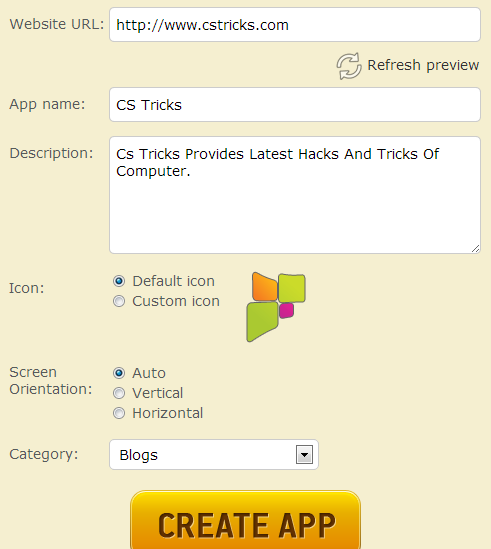
  • Firstly, goto AppsGeyser Website and register a free account.

  • Fill all columns correctly and finally click on create app.
  • Now you will see a signup form. Register using that signup form.
  • After registration, you will see a dashboard; from there you can get the download link to share your android application with your audience.
  • Now you are successfully created your own Android application for your website.

?? Download our website's Android Application from below link for demo ??


?? OR Scan this QR Code ??


Please Recommend Us On Google     


Saturday, 20 July 2013

[[ How To ]] Import All Contacts From Nokia Phone To Android Phone

0 comments
Are you planning to upgrade your simple Nokia Phone into Android Phone ?? And wanna import your all contacts ?? But as we all know there is no direct function of importing all Nokia phone contacts to Android phone. But here in this tutorial I am going to guide you step by step way of doing this task in a simple way. Don't worry it is as easy like A,B,C.

Learn How to import all your contacts from Symbian Nokia phone to New Android Smartphone :


1) Firstly, you need Nokia PC Suite for performing this step. If you don't have then download it from below link.


To Export contacts using Nokia PC suite, open the software and connect to your Nokia phone through Bluetooth or Data cable. Once connected, follow below steps carefully.

  • Open the Contacts tab.
  • Click on All in the left panel or click on CTRL+A for selecting all contacts.
  • Now select File menu and finally click on Export Contacts.
  • Now your all contacts will be saved in desired folder as a .vcf format.

When you use the export option to import all your contacts from Nokia phone, each contact will be saved as separate .vcf file. However, when you try to import them into Google, you will have to do it one file at a time. If you have a lot of contacts, importing vCards one at a time will be a time consuming job. Google does not provide a bulk import option yet to import all your contacts at a time.

Now our task is to combine separate .vcf file into one single .vcf file.

Combine multiple .vcf file into one single file :

  • Open Command Prompt.
  • Navigate to the folder where your all .vcf files are stored.
  • Finally Run the following command : COPY *.VCF combined.VCF


Note : If you have .csv files, you can follow the same steps . Just use the command : copy *.csv combined.csv .

Now finally your task is to sync your all contacts to Google contacts .

How to Import all contacts to Google contacts :

  • Once you successfully followed all above steps, now you have single .vcf file containg lot of contacts.
  • Now Click Here and scroll down to the bottom on the leftbar and click on Import contacts.
  • When prompted to select .csv of .vcf file, choose the combine .VCF file which you created in the above step.
Finally it will start the process of importing, after successfully import just sync your google contacts to your Android phone.

Bravo !! You Dit It !! Now you have successfully imported your all Nokia phone contacts into android phone.


Thursday, 27 December 2012

Hack Facebook Account Using Android Phone

0 comments
Hello All !! This is my second post about How to hack Facebook account. But this trick is much more easier and you will get 90% success if you and your victim are on same network. This tutorial is totally based upon Android device so you don't need pc or laptop for this. But plz make sure you are not using this trick in illegal way. This tutorial is just for educational purpose.

FACENIFF is an Android application through which you can attack your victim's Facebook, Orkut, Twitter and much more accounts in a minute.


This Trick Will Only Work If You And Your Victim Are On same Wifi Network

FOLLOW THE STEPS CORRECTLY :

1) At First Download Faceniff from below link ??


2) 1. Connect to the network and open the FaceNiff app.


3) Click the red button and it will then turn green when the sniffer is on.


4) Press the enter button and It would show a list of all the accounts you could hi jack into.


5) Click the account you like to hack and you will automatically be logged in.


6) Do what you want with the hacked account.

Please Recommend Us On Google     


Thursday, 6 December 2012

Android Secret Codes

0 comments
Android is one of the most famous OS for mobiles, so below are some hidden secret codes listed just try it in your android supported phone and enjoy.

1) COMPLETE INFORMATION ABOUT PHONE :

*#*#4636#*#* ( Displays Phone Information, Battery Information, Battery History & Usage Statistics ).


2) FACTORY DATA RESET :

*#*#7780#*#* ( Displays Google account settings, System and application data settings, Downloaded applications )

Note : This code will not remove current system softwares and applications, & SD card files.

3) FORMATTING ANDROID DEVICE :

*2767*3855# ( It will remove all files and settings including the internal memory storage, it will also reinstall phone firmware )

Please Note : Once you dialled this number, there is no way to cancel this without removing your battery quickly. So think twice before putting this code.

4) UPDATES PHONE CAMERA :

*#*#34971539#*#* ( Update camera firmware in image, Update camera firmware in SD card, Displays camera firmware version, Get firmware update count )

5) SERVICE MODE :

*#*#197328640#*#* ( This code is used to enter into Service Mode, You can run various tests and change settings in the service mode )

6) CREATING BACKUP :

*#*#273283*255*663282*#*#* ( This code opens a file copy screen where you can backup your media files. EX -- Images, Sounds & Videos )

7)  LAUNCH VARIOUS TESTS CODES :

*#*#0*#*#* ( LCD Test )
*#*#3264#*#* ( Version Of RAM )
*#*#2663#*#* ( Version Of Touch Screen )
*#*#0842#*#* ( Vibration & Backlight Test )
*#*#2664#*#* ( Touch Screen Test )
*#*#0588#*#* ( Sensor Test )

8) GET FIRMWARE VERSION INFORMATION :

*#*#4986*2650468#*#* ( PDA, Phone, H/W, RFCallDate )
*#*#2222#*#* ( FTA HW Version )
*#*#44336#*#* ( PDA, Phone, CSC, Build Time, Change List Number )
*#*#1111#*#* ( FTA SW Version )
*#*#1234#*#* ( PDA & Phone )

9) GPS, WLAN & BLUETOOTH TEST CODES :

*#*#232339#*#* OR *#*#526#*#* OR *#*#528#*#* ( Wlan Test )
*#*#232338#*#* ( Display WIFI Mac Address )
*#*#1472365#*#* ( GPS Test )
*#*#232331#*#* ( Bluetooth Test )
*#*#232337#*#* ( Display Bluetooth Device Address )


Please Recommend Us On Google     


Sunday, 2 December 2012

Free Unlimited Calls From PC to PC or Android Devices

0 comments
Hello Readers, Hope you all are fine.. Once again thanx for visiting my blog. I am back with another trick of free calling from PC to PC or Android supported devices. Nowadays lot of free android applications are available in the market, VIBER is one of them. This trick is also based upon viber but here you have to download a software named BLUESTACKS which got some applications of android.

If you have Android device then you can easily call viber to viber without any third party software, but for computer no viber application is supported so here we have to download Bluestack and search for viber.


STEPS TO FOLLOW :

1) Firstly install BLUESTACK from Here .

2) Search for VIBER inside Bluestack application.

3) Now you have to verify your mobile number. 

4) After verification put your friend's mobile number who are already connected with viber.

5) Now you are successfully completed all steps, check wheather you are able to call or not.

� This Trick Is Personally Tested By Me And Fully Working, If You Are Facing Any Problem Then Please Comment Below.

Please Recommend Us On Google     


Saturday, 1 December 2012

Control Android Phone From Computer

0 comments
Hey Readers, Hope you all are fine. Nowadays Android devices are spreading his wings very fastly and users are increased day by day. So I thought to post something which is related to Android. In this post I will guide you to how to control your android phone from your computer. 

There are many free application in android market to control and connect your android phone with PC without cable. But the main problem is they uses more memory from your phone so it causes hanging problem and slows down your phone software. AIRDROID is the latest Android application which uses very less memory and very easy to use.


NOTE : BEFORE PROCEEDING THIS STEP, MAKE SURE YOUR ANDROID DEVICE AND COMPUTER ARE IN SAME  NETWORK.


1) Download and Install AIRDROID application on your Android device from Android Market.

2) After Installing simply RUN Airdroid then you can see two fields, one is filled up with IP address and another is with PASSWORD .

3) Now open Browser in your PC and put same IP address in browser's address field and put same password when it prompts for it.

4) Now you are ready to connect your Android Phone to PC.

Please Recommend Us On Google